
Introduction
The migration to online education has achieved many things. It has broken geographical barriers, allowed for flexible scheduling, and digitized huge swaths of curriculum. Yet, in the transition from physical classrooms to Zoom rooms, educators lost their most powerful, fundamental tool: the ability to write.
We traded chalkboards for PowerPoints, and in doing so, teaching became static. Explaining a complex mathematical derivation, annotating a piece of literature live, or sketching a biological diagram became nearly impossible with a mouse or trackpad. The kinetic connection between the teacher’s hand and the student’s understanding was severed.
The solution to this problem is widely known: the Pen Tablet, or “Pentab.” These devices (from brands like Wacom, Huion, or XP-Pen) allow you to write digitally just as naturally as you write on paper.
However, many teachers buy a pentab, plug it into an underpowered laptop, struggle with laggy software, poor audio, and bad lighting, and give up. They realize that a pentab is just one piece of a larger puzzle.
This is where Benchmark Technomate enters the picture. We don’t manufacture pen tablets; we master the environment they live in.
As India’s leading provider of professional ed-tech studios, Benchmark Technomate understands that for a pentab to be truly effective, it needs to be part of an integrated, high-performance ecosystem. You need a powerful computer to run the digital inking software without lag. You need professional audio so students can hear your explanation as you write. You need a setup that just works.
This guide will walk you through the complete process of setting up a pen tablet for online classes, and how Benchmark Technomate’s studio solutions provide the perfect foundation for this essential teaching tool.
Table of Contents
1. The “Why”: Restoring the Power of Handwriting in Digital Education
Before diving into the setup, it is crucial to understand why integrating a pentab is the single most important upgrade for a teacher’s pedagogy.
Teaching is often about showing the process, not just the result. When you flash a completed diagram on a screen, students passively consume it. When you draw that diagram line-by-line while explaining it, students actively follow your logic.
- Cognitive Connection: Research shows that seeing handwriting being generated live helps students retain information better than seeing static text. The movement keeps them engaged.
- STEM Essentials: For Math, Physics, and Chemistry, typing equations is too slow. A pentab is the only way to solve problems fluently in real-time.
- Flexibility: It allows for spontaneous teaching. If a student asks a question, you can instantly open a blank canvas and sketch out the answer, just like a real whiteboard.
A pentab brings your natural teaching persona back into the digital realm.
2. The Ecosystem Approach: Why a Pentab Needs Benchmark Technomate
If you buy a high-end engine but put it in a rusted-out car chassis, it won’t perform. Similarly, buying a good pen tablet and plugging it into an inadequate teaching setup will lead to frustration.
A smooth digital writing experience requires processing power. Running a video conference (Zoom/Teams), sharing your screen, having a web browser open with resources, and running digital inking software (like OneNote) simultaneously puts a massive strain on a standard laptop. This results in “input lag”—where the line on the screen trails behind your pen. This lag ruins the natural feeling of writing and makes your handwriting look messy.
The Benchmark Technomate Solution: Benchmark Technomate provides the professional studio infrastructure that allows your third-party pentab to operate flawlessly.
We don’t sell the pen; we provide the powerful Benchmark All-in-One (AIO) PC that ensures zero-lag writing. We provide the Benchmark Wireless Microphones so your audio is crisp while you are focused on drawing. We provide the professional lighting and acoustics that make your entire presentation look broadcast-quality.
Benchmark Technomate turns a simple pentab into a professional “Digital Classroom Studio.”
3. Phase 1: Hardware Selection & The Benchmark Foundation
Building your setup starts with gathering the right components.
A. Choosing Your Pen Tablet (Third-Party Options) Since Benchmark Technomate focuses on the studio ecosystem, you will need to source a pentab from established manufacturers like Wacom, Huion, or XP-Pen.
- For most teachers: A medium-sized tablet without a built-in screen (e.g., Wacom Intuos Medium or One by Wacom) is sufficient. It is cost-effective and durable.
- For advanced users: A pen display, where you write directly on a screen (e.g., Wacom Cintiq or Huion Kamvas), offers a more intuitive experience but at a higher cost.
B. The Engine: The Benchmark All-in-One (AIO) PC This is the heart of the Benchmark Technomate solution. To ensure your handwriting is fluid and your streams are stable, you need dedicated computing power.
- The Benchmark AIO PC replaces clutter-prone towers and underpowered laptops with a sleek, powerful machine integrated into a beautiful display.
- With robust processor options and ample RAM, the Benchmark AIO ensures that your heavy teaching applications and the pentab drivers run smoothly side-by-side, eliminating frustrating lag.
C. The Voice & Vision: Benchmark Audio/Video Solutions When you are focused on writing on your pentab, you might turn your head away from the camera or speak downward.
- Benchmark Wireless Microphones: These ensure your voice remains perfectly consistent and clear, regardless of your head position while writing.
- Benchmark 4K PTZ Cameras: These provide a crystal-clear image of you, the teacher, adding a professional broadcast feel that complements your digital whiteboard.
4. Phase 2: The Physical Setup & Ergonomics
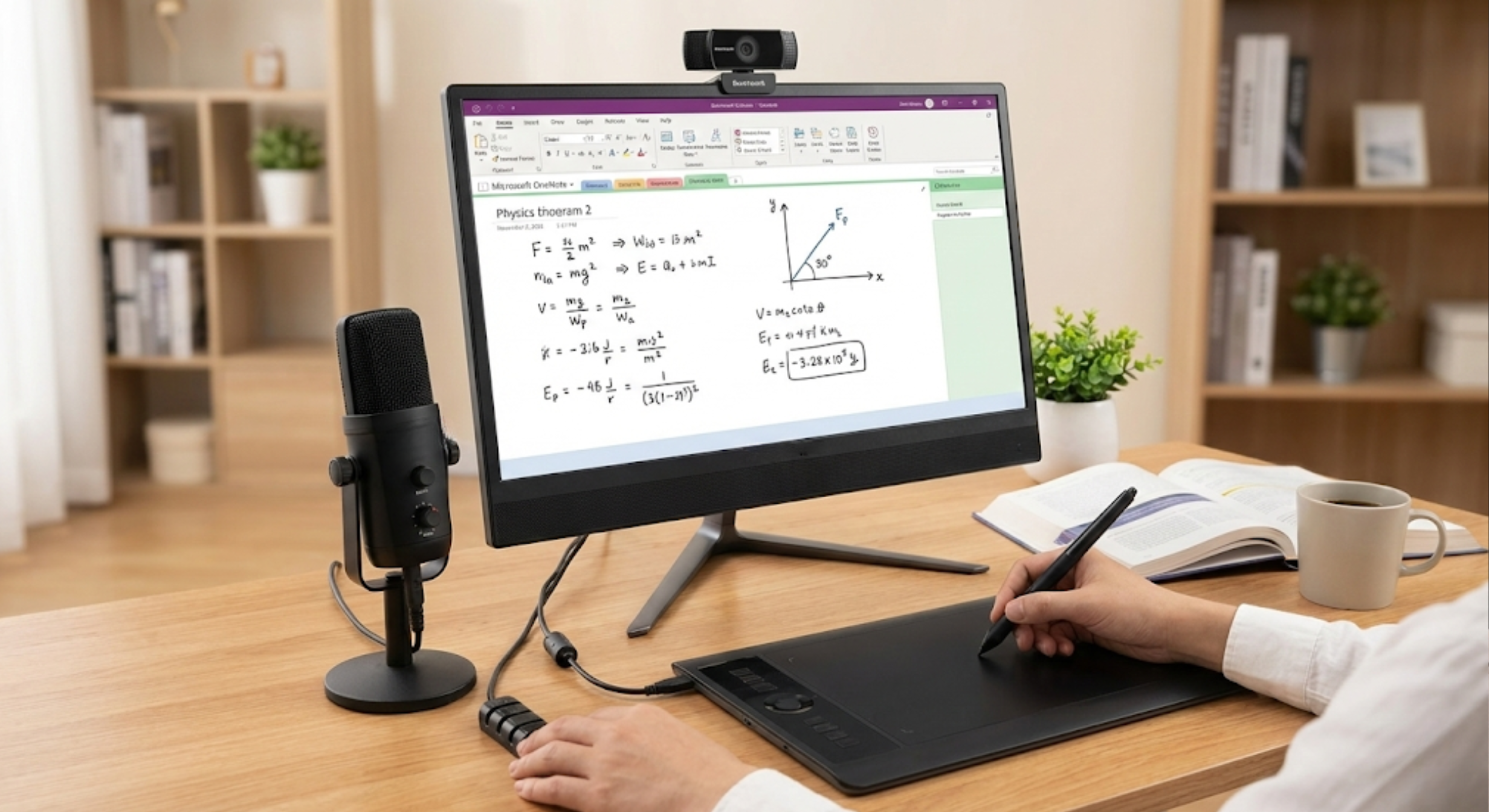
Once you have your pentab and your Benchmark Technomate studio gear, physical placement is key to a comfortable workflow.
- Placement: Place your pen tablet directly in front of your Benchmark AIO screen, aligned with your keyboard. Do not place it off to the side like a mouse pad; this will skew your handwriting and cause shoulder strain over long classes.
- The “Hover” Zone: Get used to the fact that the tablet surface maps to your entire screen. Hovering the pen above the surface moves the mouse cursor. Touching the surface clicks or draws.
- Desk Real Estate: The advantage of the Benchmark AIO PC is its small footprint, leaving you plenty of desk space for your pentab, textbook, and notes.
5. Phase 3: The Critical Software Setup (Universal Guide)
This is where most beginners fail. A pentab plugged in without its specific drivers is just an awkward, expensive mouse. It will not have pressure sensitivity, and your handwriting will look like a child’s crayon drawing.
Regardless of which brand of tablet you bought, the process is generally the same:
A. Downloading Manufacturer Drivers
- Do not rely on Windows or Mac to automatically install drivers.
- Go to the official website of your tablet’s manufacturer .
- Search for your specific model number.
- Download and install the latest driver for your operating system.
- Crucial Step: Restart your Benchmark AIO PC after installation to ensure the drivers hook correctly into the operating system.
B. Configuring Pen Pressure and Mapping Once restarted, open the newly installed tablet software (e.g., “Wacom Tablet Properties” or “Huion Tablet”).
- Mapping: Ensure the tablet is mapped to the correct screen (if you are using multiple monitors). The total active area of the tablet should correspond to the full screen of your Benchmark AIO.
- Pressure Sensitivity: Test the pressure. Pressing harder should make a thicker line. Adjust the “Tip Feel” slider. For teaching (writing text and equations), a firmer setting is usually better than a very soft one, as it leads to more consistent, legible handwriting.
C. Customizing Express Keys for Teaching Most pentabs have physical buttons on the side (Express Keys) and two buttons on the pen itself. These are huge time-savers in a live class.
- Pen Buttons: Set one pen button to “Undo” (Ctrl+Z) and the other to “Erase” or “Pan/Scroll.” Being able to instantly undo a messy line with a click of your thumb is incredibly useful.
- Tablet Keys: Map these to common teaching tasks: changing pen colors (e.g., black to red for corrections), zooming in/out, or taking a screenshot.
6. Phase 4: Integrating Handwriting into Your Teaching Workflow
Your hardware is ready. Now, which software should you use on your powerful Benchmark AIO PC to teach?
A. The Digital Whiteboard: Microsoft OneNote For 90% of teachers, OneNote is the best tool. It is an infinite digital notebook that handles handwriting beautifully.
- Organization: Create separate notebooks for each class, sections for chapters, and pages for individual lessons.
- Inking Tools: The “Draw” tab offers various pens, highlighters, and a robust math assistant.
- Preparation: You can paste images of diagrams or questions into OneNote before class, and then annotate over them live during the lecture.
B. Live Annotation in Zoom/Teams All major video conferencing platforms have built-in annotation tools.
- Zoom: When sharing your screen, a toolbar appears. Click “Annotate,” select the “Draw” tool, and your pentab will work immediately over whatever is on your screen.
- Microsoft Teams: Use the built-in “Microsoft Whiteboard” integration for a collaborative space where you and selected students can write simultaneously.
C. Correcting Student Work (PDFs) Grading digital homework becomes easy. Open a student’s PDF assignment in Microsoft Edge browser (which has excellent built-in inking) or Adobe Acrobat Reader. Use your pentab to circle errors, write feedback in the margins, and give a grade in red ink, just like physical papers.
7. Advanced Studio Tips for Smooth Delivery
Leverage the power of your Benchmark Technomate ecosystem for a truly professional broadcast.
- The Dual-Monitor Advantage: If you add a secondary monitor to your Benchmark AIO PC, keep your teaching canvas (OneNote) on the main screen and your video conferencing app (showing student faces and chat) on the secondary screen. Map your pentab only to the main teaching screen. This keeps your canvas uncluttered.
- Lighting Matters: Even though they are looking at your handwriting, students still need to see you. The professional lighting solutions provided by Benchmark Technomate ensure you look professional in your camera feed, building trust and authority.
- Practice Hand-Eye Coordination: Writing while looking at the screen instead of your hand takes practice. Before your first live class, spend an hour just writing the alphabet, drawing shapes, and writing out sample equations to build muscle memory.
8. Conclusion: The Complete Digital Classroom
Adding a pen tablet to your setup is the single most impactful pedagogical change you can make for online teaching. It changes you from a presenter of slides back into a teacher.
But remember, the tablet is just a tool. For that tool to work effectively, it needs a stable, powerful, and professional environment.
Benchmark Technomate provides that environment. By building your studio around the powerful Benchmark AIO PC, ensuring crystal-clear communication with Benchmark audio/video tools, and utilizing our expertise in studio setup, you ensure that when you pick up that digital pen, everything just works.
Don’t just buy a gadget; invest in a complete teaching solution. Let Benchmark Technomate help you build the professional digital classroom where your teaching—and your handwriting—can truly shine.
9. Frequently Asked Questions (FAQ)
Q1: Does Benchmark Technomate sell its own brand of pen tablets? A: No. Benchmark Technomate specializes in providing the complete professional studio ecosystem—high-performance AIO PCs, cameras, microphones, lighting, and acoustics—that allows third-party pen tablets (from brands like Wacom, Huion, etc.) to function flawlessly in a teaching environment.
Q2: Why can’t I just plug a pentab into my current old laptop? A: You can, but you will likely experience frustration. Running video conferencing software, screen sharing, and digital inking simultaneously requires significant processing power. Older laptops often struggle, leading to “input lag” where your writing trails behind the pen, making it look messy and illegible. The powerful Benchmark AIO PC eliminates this lag.
Q3: Do these tablets work with Macs as well as Windows PCs? A: Yes, almost all major pentab manufacturers provide drivers for both macOS and Windows. Benchmark Technomate studio solutions are also designed to be platform-agnostic, ensuring a professional setup regardless of your OS.
Q4: Is writing on a plastic tablet slippery compared to paper? A: It can feel different initially. However, most quality pentabs have a textured surface designed to provide a slight friction (“tooth”) that mimics the feel of pen on paper. Most teachers adjust to it within a few hours of practice.
Q5: Do the pens need batteries? A: Most modern, quality pen tablets use Electro-Magnetic Resonance (EMR) technology, meaning the pens are battery-free and never need charging. They are always ready to teach.
Q6: How does Benchmark Technomate help if I’m having trouble with my pentab setup? A: While Benchmark doesn’t manufacture the pentab, our expertise lies in the entire studio workflow. If you are facing issues like lag, software conflicts, or audio/video integration problems while using your pentab within a Benchmark studio setup, our support team can help diagnose if the issue lies with the computing power, software settings, or integration points.
Best Microphones for Online Teaching in 2026 –https://benchmarktechnomate.in/best-microphones-for-online-teaching-in-2026/
Best Camera for Online Classes in 2026 –https://benchmarktechnomate.in/best-camera-for-online-classes-in-2026-online-teaching-camera-2026/